AppV has a few weaknesses, one of them is Com+ Objects. It doesn’t like Com+ Objects and sequencing an application with them generally results in this error message:
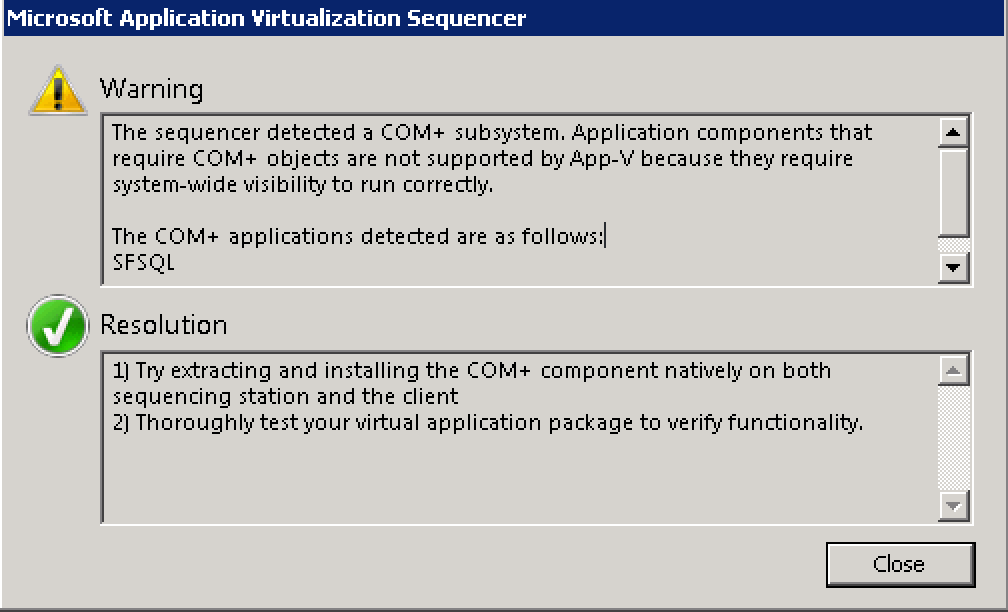
The Resolution seem easy enough:
1) Try extracting and installing the COM+ component natively on both sequencing station and the client
2) Thoroughly test your virtual application package to verify functionality.
But how do you extract the COM+ components?
1) Open 'Component Services'

2) Expand until you find your Com+ Applications, right-click and select 'Export'

3) Click 'Next'
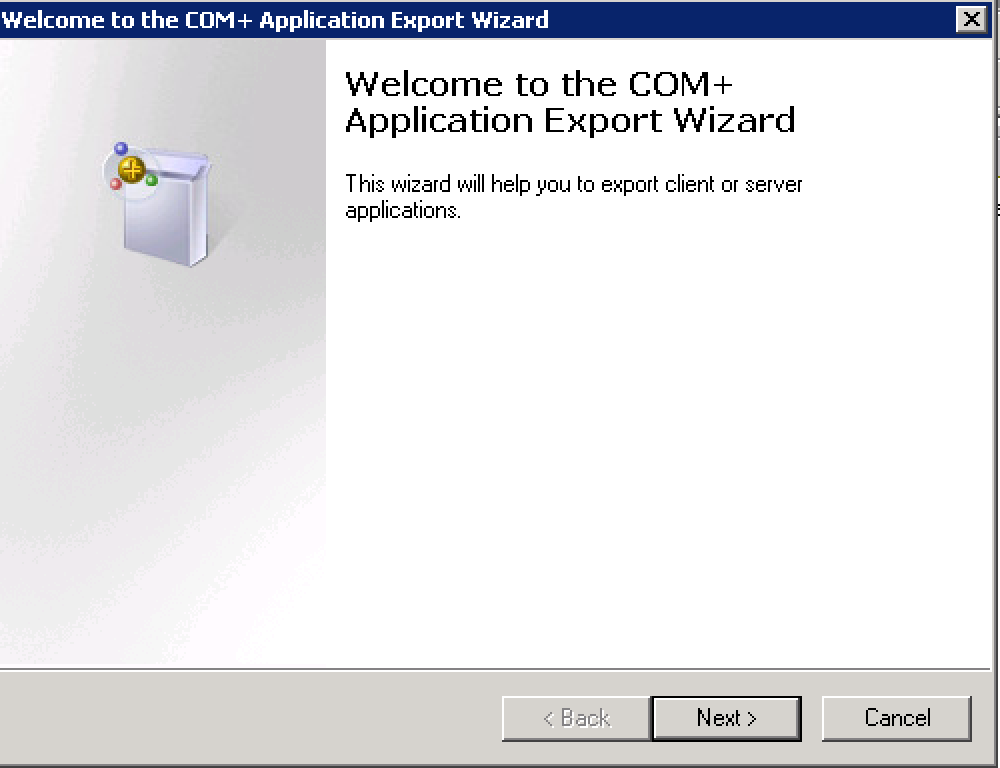
4) Enter a path to save your MSI then click 'Next'

5) Click 'Finish'

Since this application had two Com+ Applications I exported my second one as well:


To ensure they work, I took them to our XenApp Test server and installed them.

Both *appeared* to have installed correctly. But this application requires the Com+ Application to run under a service account. Checking the original install:


I can see under the 'Identity' tab that it is configured for 'This user:'. I then checked the MSI install on the XenApp Test server and looked at the Identity tab:

It appears it defaults to 'System Account' even though I selected 'Export user identities with roles'. To change the user account silently, I used this script supplied by the vendor (as a encrypted vbe):
'Setup variables
Const ApplicationName = "SFSQL"
Const AccountName = "HEALTHY\SVC_SharpFocus"

'Setup COM+ Application Catalog Object
Set Catalog = CreateObject("COMAdmin.COMAdminCatalog")
Set apps = Catalog.GetCollection("Applications")
'Populate the object with Applications from the COM Admin Catalog object
apps.populate

' Loop for each application in the array
For each app in apps
'Check for my application
    If app.Name = ApplicationName then
    ' If the application is found perform actions then create the roles object
        ' Clear the application Authentication Access Checks value
        app.Value("ApplicationAccessChecksEnabled") = false
        ' Set the application identity to be the Network Service
        app.Value("Identity") = "HEALTHY\SVC_SharpFocus"
                ' Set the application password for the network service account
                app.Value("Password") = "PASSWORDLOL"
        ' Save the changes to the application object
        apps.SaveChanges
    ' Escape the If statment
    End If
' Progress the application loop
Nex
This script changes the user account on the Com+ applications to use the proper account. When browsing the properties of the components of the SFSQL object I saw it referenced the dll to it:


Fortunately, it seems these files are captured by the MSI export of the Com+ Application.
To test everything now, I must now create my AppV package. Before doing the install I installed my prerequisites (the Com+ Applications) into the Sequencer so they are not captured by the package.
I ran this script to do my prereq install:
:: ===========================================================================================================
::
:: Created by:  Trentent Tye
::   Intel Server Team
::   IBM Canada Ltd.
::
:: Creation Date: Dec 4, 2015
::
:: File Name:  AHS-SHARPFOCUS-PREFLIGHT.CMD
::
:: Description:  Configures Sharp Focus Prerequisites
::
:: ===========================================================================================================
::created by Trentent Tye
::default
if [%1] EQU [] (
  pushd %~dp0

  msiexec /i "SFSQL\SFSQL.MSI" /qb
  msiexec /i "SFSQLdotNET\SFSQLdotNET.msi" /qb

  cscript //nologo SFSQL_Account.vbe
  cscript //nologo SFSQLdotNET_Account.vbe

  popd
)

::add-package
if /I  [%1] EQU [A] (
  pushd %~dp0

  msiexec /i "SFSQL\SFSQL.MSI" /qb
  msiexec /i "SFSQLdotNET\SFSQLdotNET.msi" /qb

  cscript //nologo SFSQL_Account.vbe
  cscript //nologo SFSQLdotNET_Account.vbe

  popd
)

::remove-package
if /I [%1] EQU [R] (
  MsiExec.exe /X{61790351-7E04-4A76-88EC-AE93BE6D944D} /qb
  MsiExec.exe /X{66F3529A-9D0A-4187-A479-4791448CFE48} /qb
)
Now I startup the sequencer and do my sequencing first steps.
I selected a batch file I created for the install (per the vendor's initial instructions):
:::::::::::::::::::::::::::::::::::::::::::::::::::::::::::::::::::::::::::::::::::::
::
::  SharpFocus Install Sequence by Trentent Tye
::  Dec 4, 2015
::
::  AppName: HealthlineSystems_SharpFocus_6.1.28.0_x86
::
:::::::::::::::::::::::::::::::::::::::::::::::::::::::::::::::::::::::::::::::::::::

:: Prerequisites: Install the ComObjects first:
:: msiexec /i "D:\SharpFocus_Citrix_Install\ComObjects\SFSQL\SFSQL.MSI" /qb
:: msiexec /i "D:\SharpFocus_Citrix_Install\ComObjects\SFSQLdotNET\SFSQLdotNET.msi" /qb

pushd %~dp0

:: PreRequisites, J# 2.0
vjredist2.0.exe /q:a /c:"install /q"

:: This version of Sharp Focus is so old that I don't think they programmed in a silent install
:: be sure to install to "C:\Program Files (x86)\SFSQL"
SFSetup.exe
copy /y sf.EXE "C:\Program Files (x86)\SFSQL"

:: ComPlus Application - SFTSQL - not needed, captured with the prereq SFSQL.MSI
:: msiexec /i SFSQL_MTS.msi /q

::copy dlls to install folder
xcopy "d:\Sharpfocus_Citrix_Install\*.dll" "C:\Program Files (x86)\SFSQL"
xcopy "d:\Sharpfocus_Citrix_Install\richtx32.ocx" "C:\Program Files (x86)\SFSQL"

:: Register ComPlus Application - SFTSQLdotNET
cd /d "C:\Program Files (x86)\SFSQL"
%windir%\Microsoft.NET\Framework\v2.0.50727\RegSvcs /u MTSReporter.dll
%windir%\Microsoft.NET\Framework\v2.0.50727\RegSvcs MTSReporter.dll
%windir%\Microsoft.NET\Framework\v2.0.50727\RegSvcs /u SF_Reporter.dll
%windir%\Microsoft.NET\Framework\v2.0.50727\RegSvcs SF_Reporter.dll

:: Configure the ComPlus Applications to use a specific user account
cd /d %~dp0
cscript //nologo SFSQL_account.vbe
cscript //nologo SFSQLdotNET_account.vbe

:: Configure application network connections
regedit /s SFINSTALL_ServerSetup.reg

:: configure ODBC connections
regedit /s SFINSTALL_ODBC.reg

::register richtx32.ocx
regsvr32 /s "C:\Program Files (x86)\SFSQL\richtx32.ocx"

:: Create MyApps folders and icons and then cleanup
mkdir "C:\Users\Public\Desktop\MyApps\Sharp Focus"
mkdir "C:\ProgramData\Microsoft\Windows\Start Menu\Programs\MyApps\Sharp Focus"
copy /y "C:\ProgramData\Microsoft\Windows\Start Menu\Programs\Healthline Systems\Sharp Focus SQL.lnk" "C:\ProgramData\Microsoft\Windows\Start Menu\Programs\MyApps\Sharp Focus\Sharp Focus SQL.lnk"
copy /y "C:\ProgramData\Microsoft\Windows\Start Menu\Programs\Healthline Systems\Sharp Focus SQL.lnk" "C:\Users\Public\Desktop\MyApps\Sharp Focus\Sharp Focus SQL.lnk"
rmdir /s /q "C:\ProgramData\Microsoft\Windows\Start Menu\Programs\Healthline Systems"
rmdir /s /q "%userprofile%\AppData\Roaming\Microsoft\Windows\Start Menu\Programs\Healthline Systems"

pause
exit

Once the install completed I saved my package and took it to my XenApp Test server and published the application and ran it.

|
| No, this is not correct |
For some reason my application was failing. I double checked the COM+ Applications are installed and appear to be working, so I opened Procmon.exe to see if I can find where it's going wrong:

I've used procmon enough now to practically pull the old' Matrix, "blonde, brunette, red head". Working from bottom to top, the message box is generated from the 'Text' (LanguagePack) back to the KernelBase.dll. So we can exclude that has the cause, this is telling us *of* the issue. So if we look at the lines preceding it, one of them must be causing our message.

Looking at the first keys, the OLE keys, I can compare them to my sequencer and they match exactly, so the likelihood of them causing our issues is none.

So we go back a little further to the AppID key and jumping to the *SUCCESS* location to look at it's value...


I am on a server called WSCTXAPP301T but the registry key for this value is pointing to the system I did my sequencing on. I changed the value to the actual server name and did a registry search for "WSAPVSEQ07" to see if it appeared anywhere else. It did in one other location so I modified the value there as well to point to the local server:


And tested my application again:

Success! The login screen. This is as far as I can take this app until I get credentials or a user to login and try testing for me. So, for now, I can create a preflight-script to setup some prerequisites when the application is published. I modified my preflight script to include the two registry values being updated:
:: ===========================================================================================================
::
:: Created by:  Trentent Tye
::   Intel Server Team
::   IBM Canada Ltd.
::
:: Creation Date: Dec 4, 2015
::
:: File Name:  AHS-SHARPFOCUS-PREFLIGHT.CMD
::
:: Description:  Configures Sharp Focus Prerequisites
::
:: ===========================================================================================================
::created by Trentent Tye
::default
if [%1] EQU [] (
  pushd %~dp0

  msiexec /i "SFSQL\SFSQL.MSI" /qb
  msiexec /i "SFSQLdotNET\SFSQLdotNET.msi" /qb

  reg add HKEY_CLASSES_ROOT\AppID\{4B2A92BB-DAA3-49BD-BA1A-7E2F3D7190A4} /v RemoteServerName /d %COMPUTERNAME% /f
  reg add HKEY_CLASSES_ROOT\AppID\{73DDB234-D8DA-4E65-B4BE-B844F7036BB8} /v RemoteServerName /d %COMPUTERNAME% /f

  cscript //nologo SFSQL_Account.vbe
  cscript //nologo SFSQLdotNET_Account.vbe

  popd
)

::add-package
if /I  [%1] EQU [A] (
  pushd %~dp0

  msiexec /i "SFSQL\SFSQL.MSI" /qb
  msiexec /i "SFSQLdotNET\SFSQLdotNET.msi" /qb

  reg add HKEY_CLASSES_ROOT\AppID\{4B2A92BB-DAA3-49BD-BA1A-7E2F3D7190A4} /v RemoteServerName /d %COMPUTERNAME% /f
  reg add HKEY_CLASSES_ROOT\AppID\{73DDB234-D8DA-4E65-B4BE-B844F7036BB8} /v RemoteServerName /d %COMPUTERNAME% /f

  cscript //nologo SFSQL_Account.vbe
  cscript //nologo SFSQLdotNET_Account.vbe

  popd
)

::remove-package
if /I [%1] EQU [R] (
  MsiExec.exe /X{61790351-7E04-4A76-88EC-AE93BE6D944D} /qb
  MsiExec.exe /X{66F3529A-9D0A-4187-A479-4791448CFE48} /qb
)
Then I updated the Deployment_Config.xml file for this application:
```xmlLastly, I logged onto a new, fresh, system and manually tested my XML file by publishing from the command line:

Using Procmon to monitor to ensure the prerequisites get installed:


|
| "Exit Status: 0" -> Usually a good thing |
Testing the application:

|
| Looks good |
Then testing removal and monitoring with Procmon:


|
| Com+ Application are removed cleanly |
So everything looks good and I can now add this application to our AppV Management Server and deploy it to the machines that need it.
</div>