This is the most recent app I sequenced and a good template for how I am going to do my recipes.
Prerequisites:
AppV5 - Sequencing first steps
Recipe:
I create install.cmd files for all of my applications so that, if required in the future, I can re-sequence an application quickly completely through script or via one of those ‘PowerShell AppV5 automated GUI’s’.
install.cmd
```shell
:: ScreenTest III Install Script
::
:: By Trentent Tye
::
:: packagename: SoftworksGroup_ScreenTestIII_1.6.5_x64
pushd %~dp0
msiexec.exe /i "Screen Setup.msi" /qb
cd "SAP Crystal Reports 64bit"
msiexec.exe /i "CRRuntime_64bit_13_0_14.msi" TRANSFORMS=SAP_DIR_Short2.mst INSTALLDIR="C:\Program Files (x86)\1" /qb
cd %~dp0
cd "ST3 fonts"
fontreg.exe /copy
cd %~dp0
regedit /s odbc.reg
popd
::Create and move shortcuts to the desired locations
mkdir "C:\Users\Public\Desktop\MyApps\Softworks Group"
mkdir "C:\ProgramData\Microsoft\Windows\Start Menu\Programs\MyApps\Softworks Group"
copy /y "C:\Users\Public\Desktop\ScreenTest.lnk" "C:\ProgramData\Microsoft\Windows\Start Menu\Programs\MyApps\Softworks Group\ScreenTest.lnk"
copy /y "C:\Users\Public\Desktop\ScreenTest.lnk" "C:\Users\Public\Desktop\MyApps\Softworks Group\ScreenTest.lnk"
del /q "C:\Users\Public\Desktop\ScreenTest.lnk
```
Supplemental files:
odbc.reg
```plaintext
Windows Registry Editor Version 5.00
[HKEY_LOCAL_MACHINE\SOFTWARE\ODBC\ODBC.INI\scr_test]
"Driver"="C:\\Windows\\system32\\SQLSRV32.dll"
"Server"="SERVER, 49282"
"LastUser"="screen_report
```
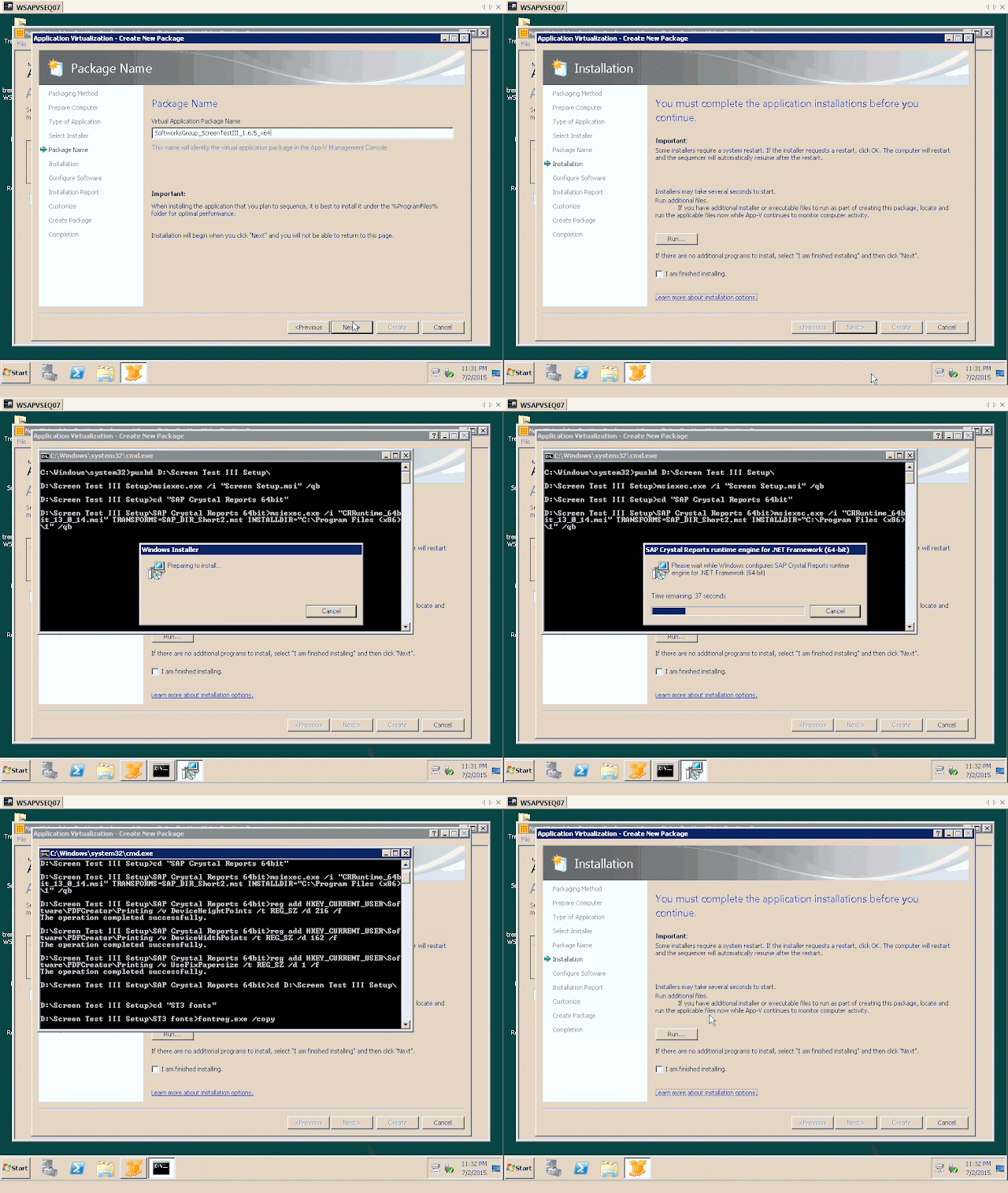
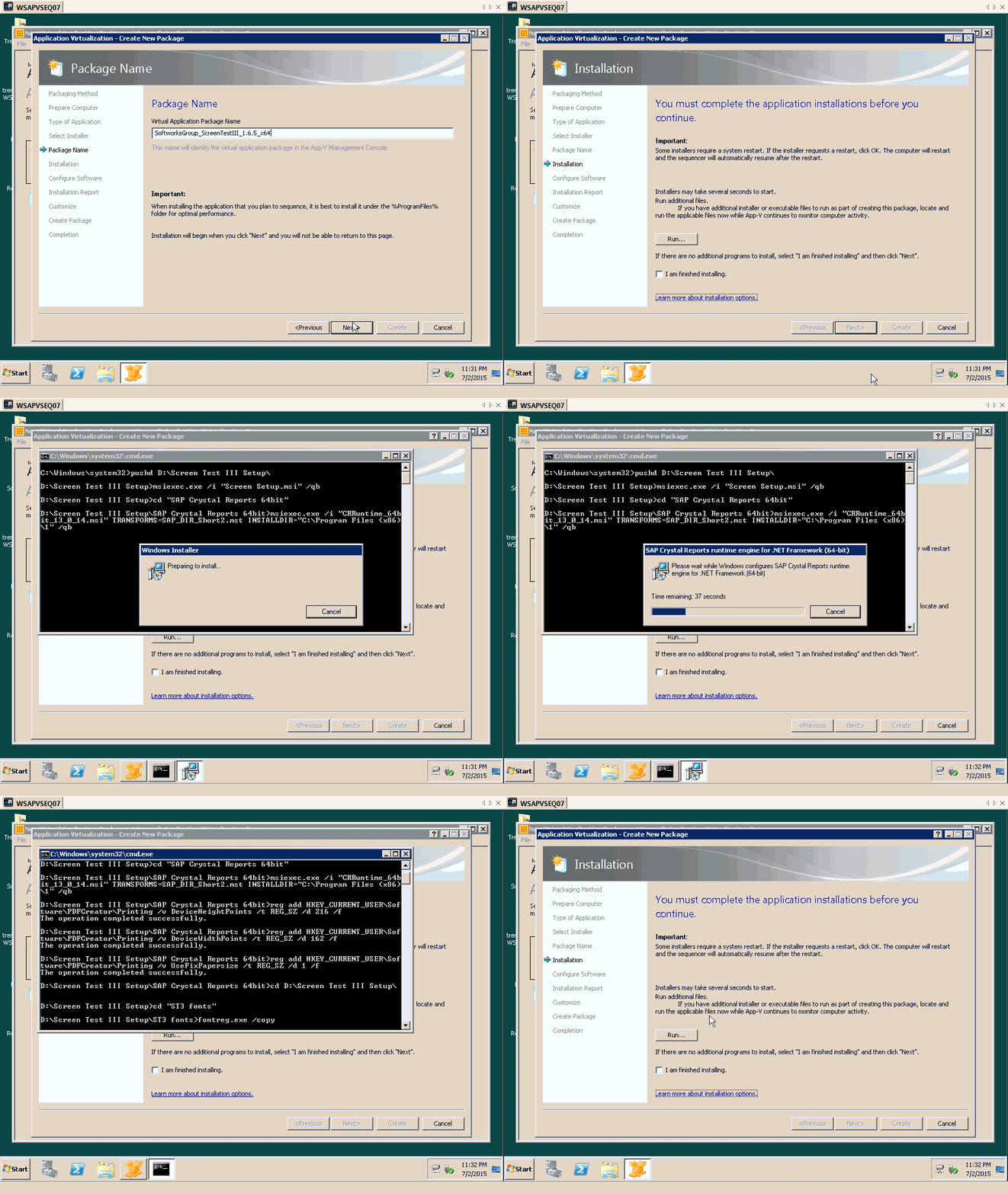
1) Select 'install.cmd' and click 'Next'

2) Name the package and click 'Next'

3) Let the install script do its thing...</p>
4) AppV5 - Post install sequencing steps
5) Review for any extra registry keys/files (generally there are none or very few) and remove and save the package.