Prerequisites:
AppV5 - Sequencing first steps
Recipe:
I create install.cmd files for all of my applications so that, if required in the future, I can re-sequence an application quickly completely through script or via one of those ‘PowerShell AppV5 automated GUI’s’.
install.cmd
:: EPIC Install Script
::
:: By Trentent Tye
::
:: Assumptions: Adobe Reader is on The XenApp Server
:: Java Runtime Environment (JRE) is installed on The XenApp Server

:: Must set Package Name to: Epic_Hyperspace_2012_7.9_RA1463_x86
:: Must modify C:\ProgramData\Epic\EPIC.CLI to point to path other than C:\Epic ("C:\Program Files (x86)\Epic\v7.9\Epic")

pushd %~dp0
cd /d %~dp0

cd Support\2012_Hyperspace_AI_Base
MsiExec /i "Epic 2012 Hyperspace.msi"  /qb!

::EPIC.CLI points to this location and requires these two files for configuration
mkdir "C:\Program Files (x86)\Epic\v7.9\Epic"
copy /y EpicComm.env "C:\Program Files (x86)\Epic\v7.9\Epic"
copy /y login.jpg  "C:\Program Files (x86)\Epic\v7.9\Epic"

::Install GDI update...
cd /d %~dp0
cd "Epic 2012 Install\GDI"
msiexec.exe /i "Epic 2012 GDI Update.msi" /qb /norestart

::For Canada we need to copy the localization to the en-CA folder.  This is fixed in 2014
mkdir "C:\Program Files (x86)\Epic\v7.9\en-CA"
xcopy /s /y "C:\Program Files (x86)\Epic\v7.9\en-US" "C:\Program Files (x86)\Epic\v7.9\en-CA"

ECHO Installing the client pack patch...
cd /d %~dp0
cd /d CP_021__RA1463
"InstallMSP.exe" /ICP "_RA1463_HYPERSPACE_1185.msp" /qb  /s
cd /d %~dp0


ECHO set the path in EPIC.CLI to "C:\Program Files (x86)\Epic\v7.9\Epic"
::notepad "C:\ProgramData\Epic\Config\EPIC.CLI"
  > "C:\ProgramData\Epic\Config\EPIC.CLI" ECHO [General]
 >> "C:\ProgramData\Epic\Config\EPIC.CLI" ECHO FormatVersion=2
 >> "C:\ProgramData\Epic\Config\EPIC.CLI" ECHO IsSharedFile=0
 >> "C:\ProgramData\Epic\Config\EPIC.CLI" ECHO UseEpicTelnet=1
 >> "C:\ProgramData\Epic\Config\EPIC.CLI" ECHO ClientID=%%CLIENTNAME%%
 >> "C:\ProgramData\Epic\Config\EPIC.CLI" ECHO SharedAppFiles=
 >> "C:\ProgramData\Epic\Config\EPIC.CLI" ECHO ClientDefaultEnvID=
 >> "C:\ProgramData\Epic\Config\EPIC.CLI" ECHO LookupByWSName=1
 >> "C:\ProgramData\Epic\Config\EPIC.CLI" ECHO UseClientTimeZone=0
 >> "C:\ProgramData\Epic\Config\EPIC.CLI" ECHO EnvironmentFiles=C:\Program Files (x86)\Epic\v7.9\Epic\EpicComm.env


:Setup folder structure
mkdir C:\Users\Public\Desktop\MyApps\Epic
mkdir "C:\ProgramData\Microsoft\Windows\Start Menu\Programs\MyApps\Epic"
copy /y "C:\ProgramData\Microsoft\Windows\Start Menu\Programs\Epic 2012\Hyperspace.lnk" "C:\ProgramData\Microsoft\Windows\Start Menu\Programs\MyApps\Epic\Hyperspace 2012.lnk"
copy /y "C:\ProgramData\Microsoft\Windows\Start Menu\Programs\Epic 2012\Hyperspace.lnk" "C:\Users\Public\Desktop\MyApps\Epic\Hyperspace 2012.lnk"
rmdir /s /q "C:\ProgramData\Microsoft\Windows\Start Menu\Programs\Debugging Tools for Windows (x86)"
copy /y "%~dp0\Epic WorkflowTracer.lnk" "C:\ProgramData\Microsoft\Windows\Start Menu\Programs\MyApps\Epic"
copy /y "%~dp0\Epic WorkflowTracer.lnk" "C:\Users\Public\Desktop\MyApps\Epic"
rmdir /s /q "C:\ProgramData\Microsoft\Windows\Start Menu\Programs\Epic 2012"

::new workflowtracer prelaunch script
copy /y "%~dp0\WorkFlowTracer.cmd" "C:\Program Files (x86)\Epic\v7.9\Shared Files"

:: Package must make a junction to a file share for the crashdumps to be saved to in deploymentconfig.xml
rmdir /s /q C:\CrashDumps
Supplemental files:
None
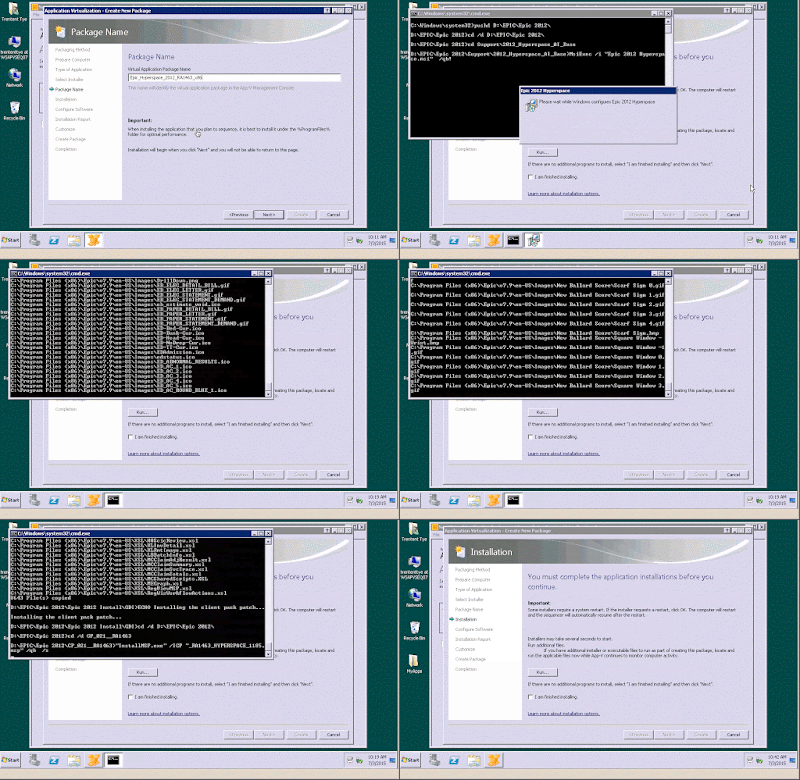
1) Select 'install.cmd' and click 'Next'

2) Name the package and click 'Next'

3) Let the install script do its thing (note the clock)...</p>

4) AppV5 - Post install sequencing steps
5) Review for any extra registry keys/files (generally there are none or very few) and remove and save the package.
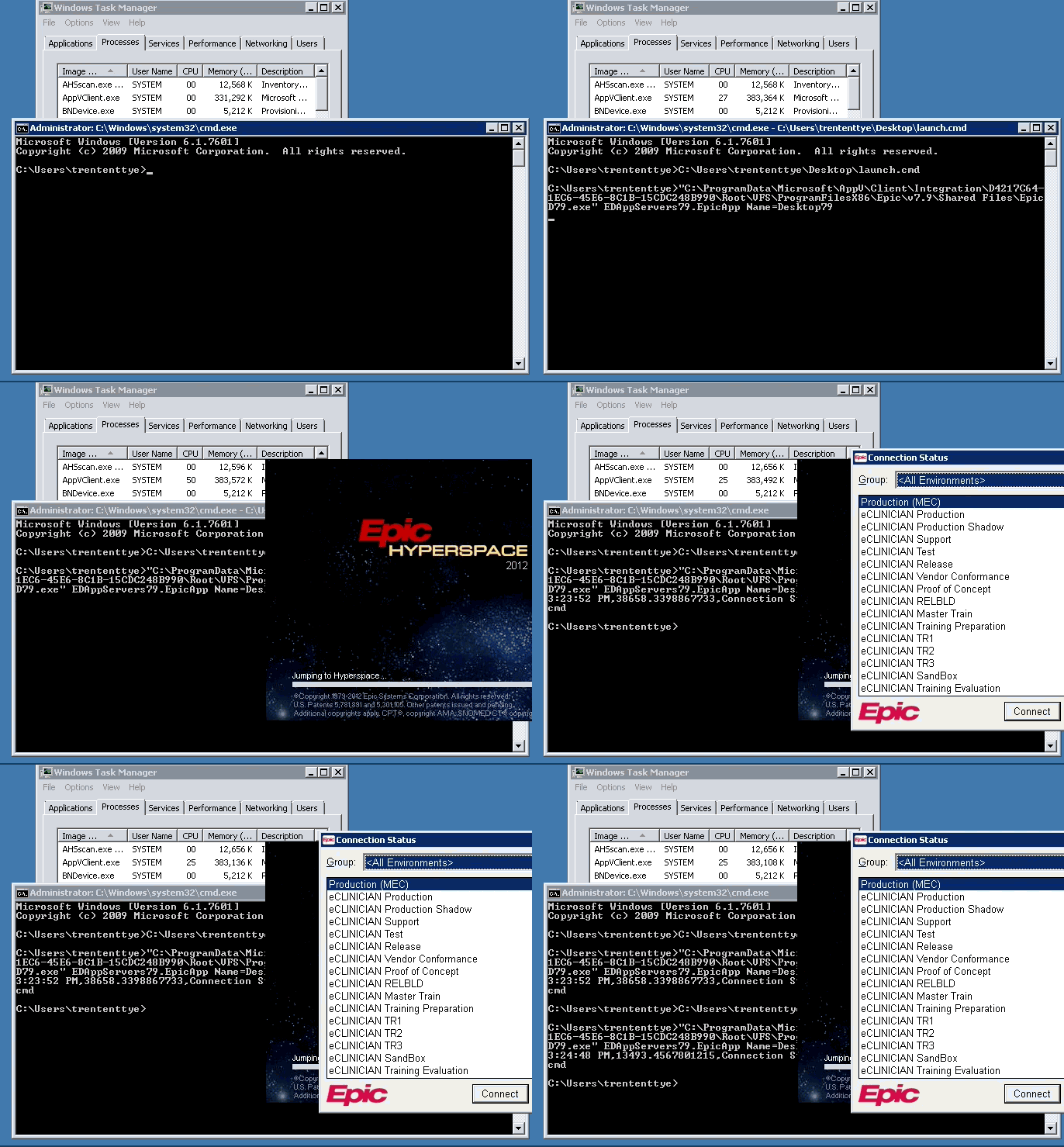
6) In order for Epic to launch in a reasonable amount of time, registry staging must be done. Without a pre-executed registry staging, first launch performance of Epic can take hundreds of seconds.